Master cPanel Hosting in 2026: Beginner to Advanced Guide
- By Anis Ur Rahman
- 09 Dec, 2025
Last Updated: 20 May 2026 | Read Time: 10 Minute
Managing a website can feel overwhelming when you’re new to hosting, but cPanel makes everything easier. In 2026, cPanel remains the most widely used hosting panel worldwide. From bloggers to eCommerce owners, from developers to beginners—everyone trusts cPanel because it gives total control of your website through a clean, simple dashboard.
This master cPanel hosting in 2026 guide walks you from beginner to advanced with clear, actionable instructions. You’ll learn how to manage WordPress files, set up email, configure DNS, use the Terminal efficiently, and choose the right hosting provider—without confusion or guesswork.
What is cPanel?
cPanel is a web-based hosting control panel that enables you to manage your website without requiring coding or complex server commands. It includes tools for file management, email setup, DNS control, backups, security, analytics, database management, and script installations.
Why cPanel Is Still in 2026
In 2025, new control panels like DirectAdmin, CyberPanel, and custom dashboards exist—but cPanel is still the most trusted because:
It’s extremely beginner-friendly
Hosting companies worldwide support it
Works perfectly with WordPress, WooCommerce, Laravel, and custom PHP
Includes Terminal, Git, Cron Jobs
Offers one-click installers for CMS platforms
Provides reliable backups and DNS tools
Learn more : Best cPanel Hosting Guide for Beginners in 2026
Who This Guide Is For
This guide is ideal for:
New website owners
Freelancers and web developers
Digital marketers managing client hosting
Students learning web development
Small business owners wanting full website control
What You’ll Learn
This guide covers:
File Manager
Terminal
One-click WordPress install
MySQL database
Email + SMTP
Backups
DNS
Hosting selection
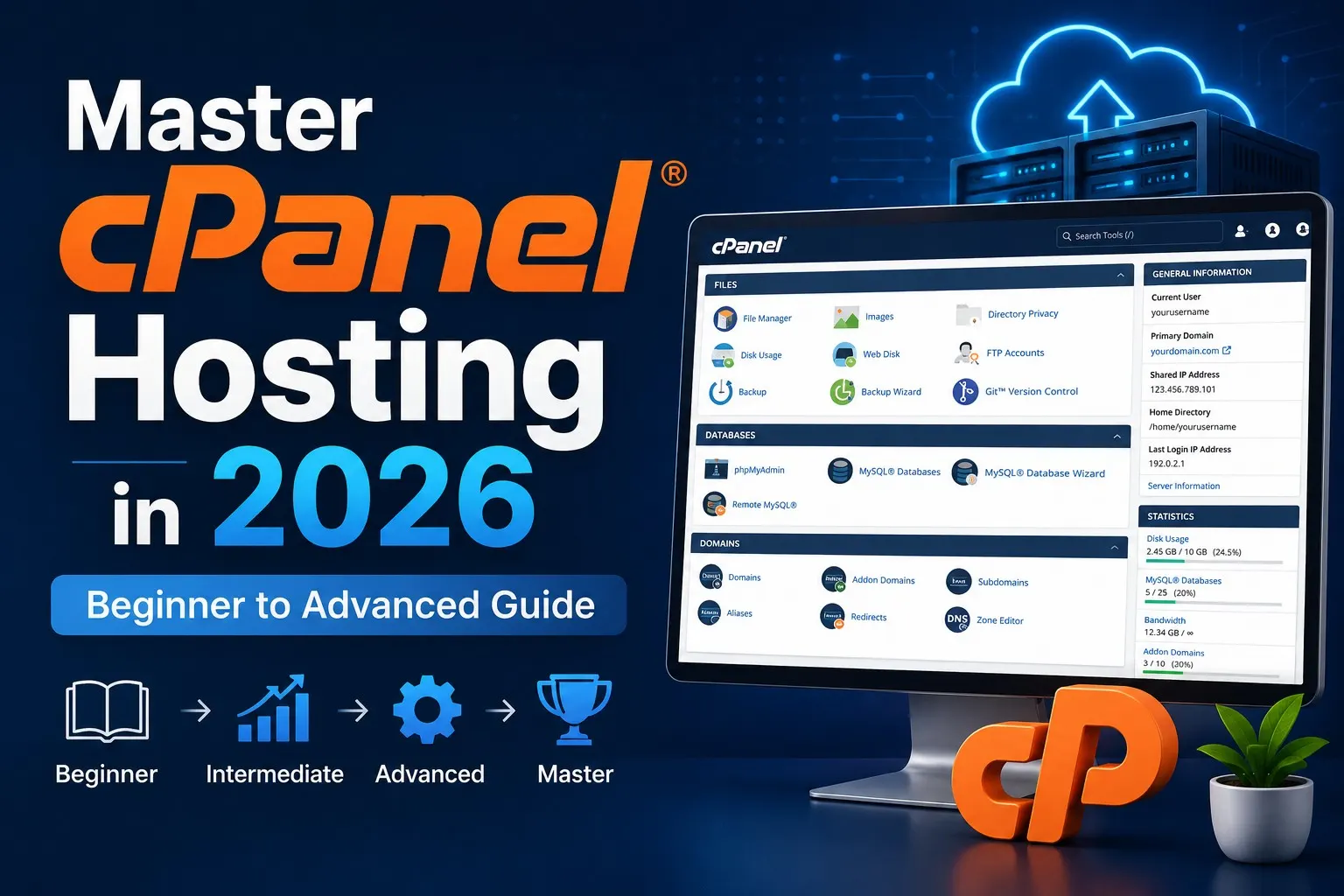
cPanel Control Panel Overview

1. What cPanel Is Used For
cPanel is your website “control center.” Just like you manage a mobile phone from its settings, cPanel lets you manage your website hosting.
Common Things You Can Do in cPanel
Upload and edit files
Install WordPress
Create business email accounts
Manage subdomains
Backup or restore websites
View analytics
Fix DNS issues
Add security (SSL, filters, IP blocker)
Key Features
Some of the most used tools inside cPanel include:
File Manager
phpMyAdmin
MySQL Databases
Zone Editor
SSL/TLS
Email Accounts
Softaculous Installer
Why Beginners want it
You don’t need coding skills, and Everything is point-and-click.
Why Developers Use It
Tools like Terminal, Git, Cron Jobs, and PHP selector give full flexibility.
2. Navigating the cPanel Interface
Your cPanel dashboard is divided into categories.
Files
Includes:
File Manager
Backup
FTP Accounts
Disk Usage
Databases
For managing MySQL databases and phpMyAdmin.
Domains
For addon domains, subdomains, redirects, zone editor, and domain aliases.
Create business email, filters, forwarders, and autoresponders.
Security
SSL, Hotlink Protection, IP Blocker, SSH Access.
Metrics
Analysis tools: Visitors, Errors, Bandwidth, Raw Logs.
Pro Tip:
Use the search bar at the top—fastest way to navigate.
3. File Manager in cPanel
What File Manager Does
The File Manager helps you handle everything related to your website files, just like using Windows Explorer.
You can:
Upload files
Edit code
Change permissions
Move or delete items
Compress folders
Extract ZIP packages
How to Upload, Edit, Compress & Extract
Upload Files
Go to public_html → Upload → Choose file.Edit Files
Right-click → Edit
This is useful for editing:
HTML
CSS
PHP
.htaccess
Compress Files
Select files → Compress → ZIP
Useful for taking manual backups.
Extract Files
Upload theme/plugin ZIP → Extract
Great for WordPress migrations.
4. Understanding public_html (Root Directory)
What NOT to Delete
Avoid deleting:
.htaccess
wp-config.php
wp-content folder
index.php
cgi-bin
Security Tip
Before editing PHP or config files, download a backup. One mistake can break your website.
cPanel Terminal
What Is Terminal?
cPanel Terminal gives you command-line access inside the hosting environment. It’s like SSH access from your browser.
When Should You Use Terminal?
Terminal is useful when you need to:
Install composer packages
Run Git commands
Install Laravel
Manage large file structures
Use WP-CLI to manage WordPress
Execute cron jobs
Common Commands
```
ls               List files
cd folder        Enter folder
composer install
git clone URL
rm -rf folder    Delete folder
nano file.php    Edit file
```
Using Terminal saves time for developers and advanced users.
One-Click Installer (WordPress Setup)

What Is One-Click Installer?
Softaculous, Installatron, and Fantastico are tools that let you install WordPress, Joomla, Laravel, or Magento instantly.
Install WordPress in 2 Minutes (Step-by-Step)
1. Open cPanel
2. Search “Softaculous.”
3. Click WordPress
4. Click Install
5. Set admin username/password
6. Choose a domain
7. Click Install
Within 30–60 seconds, WordPress is ready.
Troubleshooting Install Errors
Directory not empty" → Delete old files
Database errors → Create new database
Admin login not working → Reset password in phpMyAdmin
Read More : How to Improve WordPress Speed without Plugins
Email Setup in cPanel

Creating a Professional Email
Go to:
Email Accounts → Create
Example: admin@yourdomain.com
SMTP Setup (Gmail, Outlook, WordPress)
Use:
Host: mail.yourdomain.com
Port: 587
Encryption: TLS
Username: Your email
Password: Inbox password
SMTP ensures emails are delivered to the inbox instead of spam.
Webmail Login & Customization
Visit:
`yourdomain.com/webmail`
Inside Webmail, you can:
Change layout
Add signatures
Create folders
Set autoresponders
Apply filters
Read More: Secure and Reliable Business Email Hosting in 2026
MySQL Database in cPanel

MySQL Overview (Why It’s Free)
MySQL is a free, open-source relational database system used by millions of websites, including WordPress. The community edition is free.
Creating a Database
Steps:
- MySQL Databases
- Create a database
- Create user
- Assign user to database
- Grant All Privileges
Connecting to WordPress
WordPress needs:
DB Name
DB User
Password
Host (usually `localhost`)
Common Errors
Wrong DB name → Fix wp-config.php
Lost password → Reset user password
Corrupted tables → Repair tables in phpMyAdmin
Backup & Restore Master cPanel step-by-step in 2025

Full Backup
Creates a complete backup, including:
Files
Databases
Email accounts
Partial Backup
Backup specific components:
Home directory
Databases
Email forwarders
Safe Restore Tips
Restore databases before files
Do not overwrite active sites during peak hours
Keep at least 3 backups
Explore A Complete Guide: Backup in Hosting Services
Domain & DNS Management

Domain vs DNS
Domain: Your website’s name
DNS: The system that maps your domain to hosting
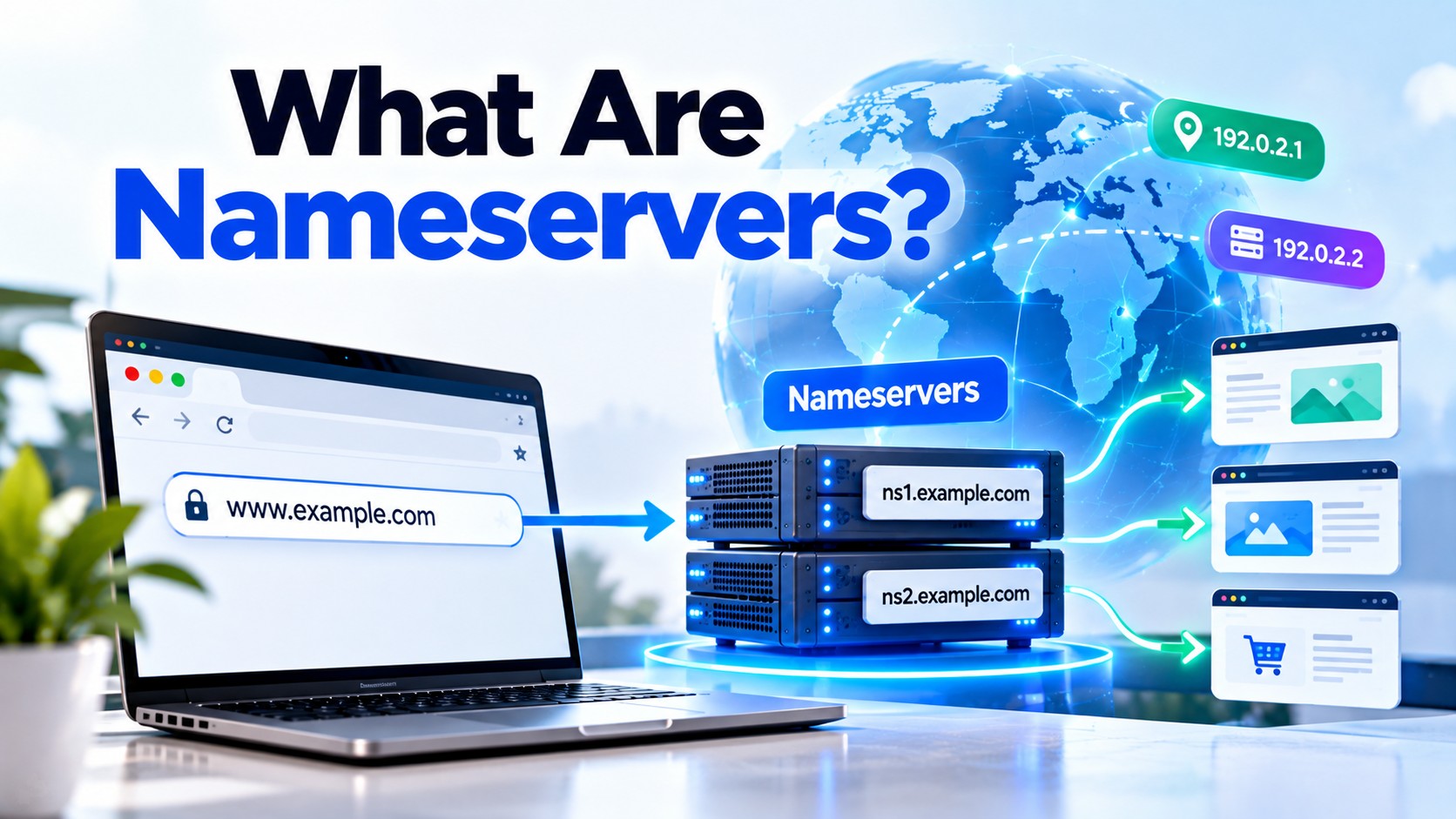
Point Domain via Nameservers
Simple method: Use your hosting provider's nameservers.
DNS Records Explained
A Record → Points domain to IP
CNAME → Alias
MX → Email routing
TXT → SPF/DKIM/Verification
Fixing DNS Problems
Check IP mismatch
Remove duplicates
Wait for propagation
Use DNS checker tools
Choosing a Good cPanel Hosting Provider
cPanel vs Hosting
Many beginners confuse hosting with cPanel.
Hosting means a server
cPanel means management software
What to Look For in 2025
Choose hosting with:
LiteSpeed or NGINX
NVMe SSD
Free SSL
Daily backups
Free cPanel
24/7 support
High-speed data center
Hosting Types
Shared Hosting: Beginner-friendly
VPS Hosting: Fast and powerful
Reseller Hosting: Agencies and freelancers
Read A Full Guide: Top Hosting Types in Bangladesh
Comparison (Text Format)
Shared: Affordable, limited
VPS: Fast, scalable
Managed Cloud: Premium speed, high security
Get More: Best cPanel Hosting Types Compared
Case Study: Real Example of cPanel Success
A bakery in Dhaka upgraded its old hosting to a modern NVMe LiteSpeed cPanel host in 2024. Before switching, their website was slow, emails were failing, and backup issues were common.
After switching to cPanel-powered hosting:
Website speed improved from 4.8s → 1.2s
Email delivery went from 40% inbox → 95% inbox rate
DNS issues solved using Zone Editor
The owner learned to manage WordPress files through the File Manager
Backup/restore saved the site during a theme update crash
This shows how good hosting + cPanel empower even non-technical business owners.
FAQs of Master cPanel Hosting In 2026
What is cPanel used for?
Managing website files, email, DNS, databases, and installations.
What is File Manager used for?
Uploading, editing, deleting, and organizing website files.
Does cPanel have a Terminal?
Yes, the built-in Terminal provides command-line access.
How to install WordPress with a one-click installer?
Softaculous → WordPress → Install → Fill details → Done.
How to set up SMTP?
Use mail.yourdomain.com + port 587 + email login.
Is MySQL free?
Yes, the community version is free.
Can Webmail be customized?
Yes—theme, signature, filters, folders, everything.
Are the domain and DNS the same?
No. Domain = name. DNS = a mapping system.
Difference between cPanel and hosting?
Hosting is the server. cPanel is the control panel.
Conclusion
Now you know exactly how to use cPanel from beginner to advanced level. You understand File Manager, Terminal, MySQL, backups, DNS, email, and WordPress installation. This knowledge is essential for website owners, freelancers, and developers.
The more you practice, the more confident you’ll become. So, Remember :
Good hosting provides the foundation
cPanel gives you control
You turn this power into real results
Explore Now: Where to Buy cPanel License in Bangladesh

Author By
Anis Ur Rahman
Anis Ur Rahman writes domain and web hosting–related articles on behalf of Ummah Host BD. He works with domain name selection, web hosting, BDIX hosting, and website performance, and creates informational guides based on practical experience to help users make informed decisions. His writing focuses on providing reliable, easy-to-understand, and decision-supportive content.
Search Blog
Categories
- Problem Solving 3
- RDP Hosting 4
- SMS Service 17
- IP Number 11
- Reseller Hosting 5
- Promo Offer 2
- Achieve 3
- SSD Hosting 5
- cPanel Hosting 7
- BDIX Hosting 7
- Email Hosting 4
- Dedicated Server 7
- User Guide 0
- Security 4
- Online security 6
- Business 5
- SEO 3
- VPS Hosting service 31
- Manage Hosting 1
- domain hosting service 29
- Domain 1
- Hosting 40