How to Point Domain to Hosting: Ummah Host BD Nameserver Guide
- By Anis Ur Rahman
- 08 Oct, 2026
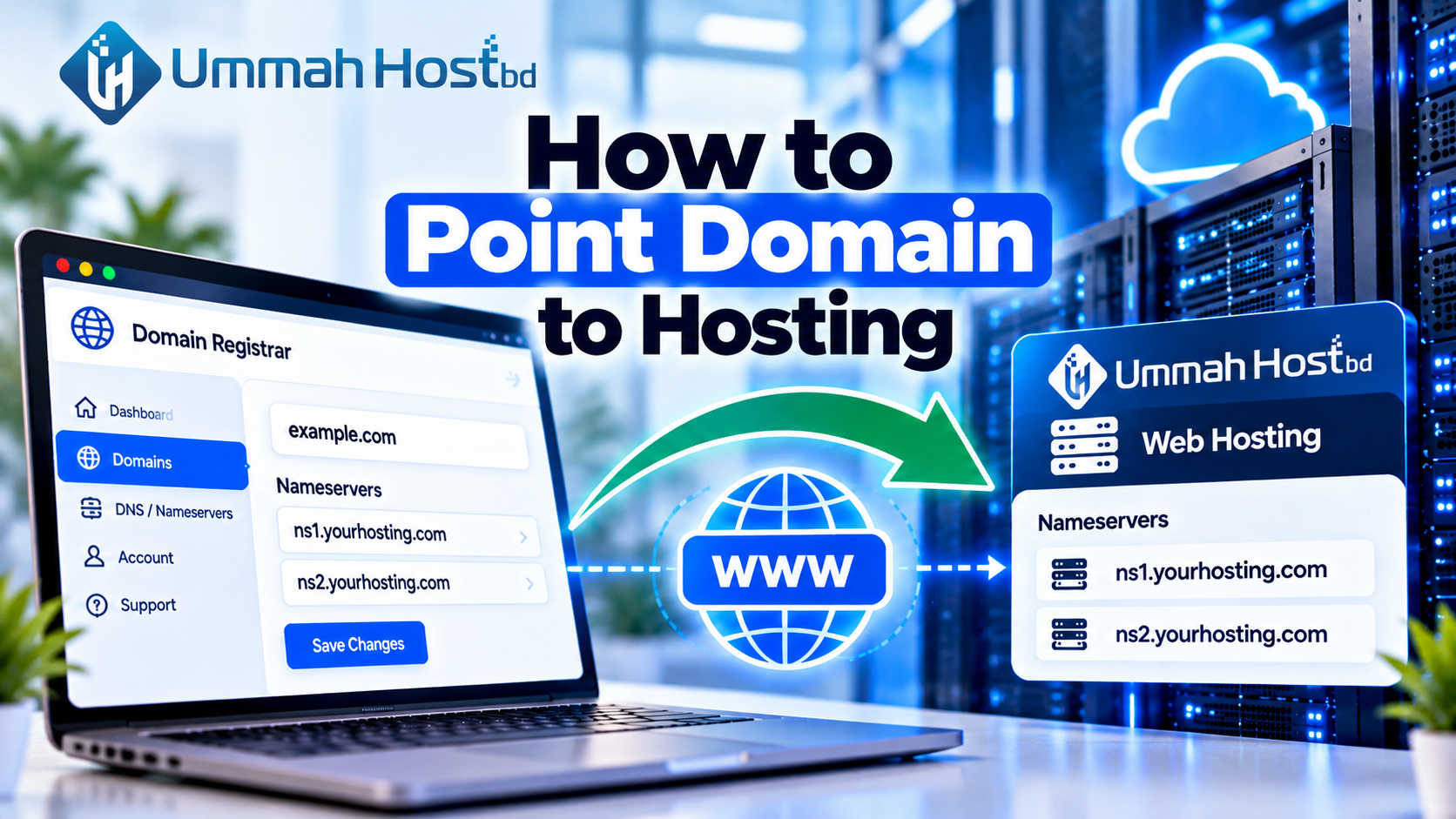
Quick answer: To point your domain to hosting, log in to your registrar, open the nameserver settings, and replace the old nameservers with the ones from your Ummah Host BD welcome email. Save the change, then wait. It often works within a few hours, but it can take up to 48 hours.
Buying a domain and buying hosting are usually two separate steps. Until you connect them, your domain has no idea where your website files live. Visitors see an error or a parking page instead of your site.
Below, you'll learn how to point a domain to hosting with Ummah Host BD nameservers, set the domain up in cPanel, and fix the usual problems. You only need to copy and paste a few values. No coding is needed.
What does it mean to point a domain to hosting?
Short answer: It means telling the internet which server holds your website. You do this by setting nameservers at your domain registrar.
Think of a shop. Your domain name is the street address. Your hosting is the building where your goods sit. Nameservers are the signpost that tells visitors which building belongs to that address.
Three parts do the work:
Domain name: the address people type, like yourbusiness.com.
Web hosting: the server space that stores your files, emails, and databases.
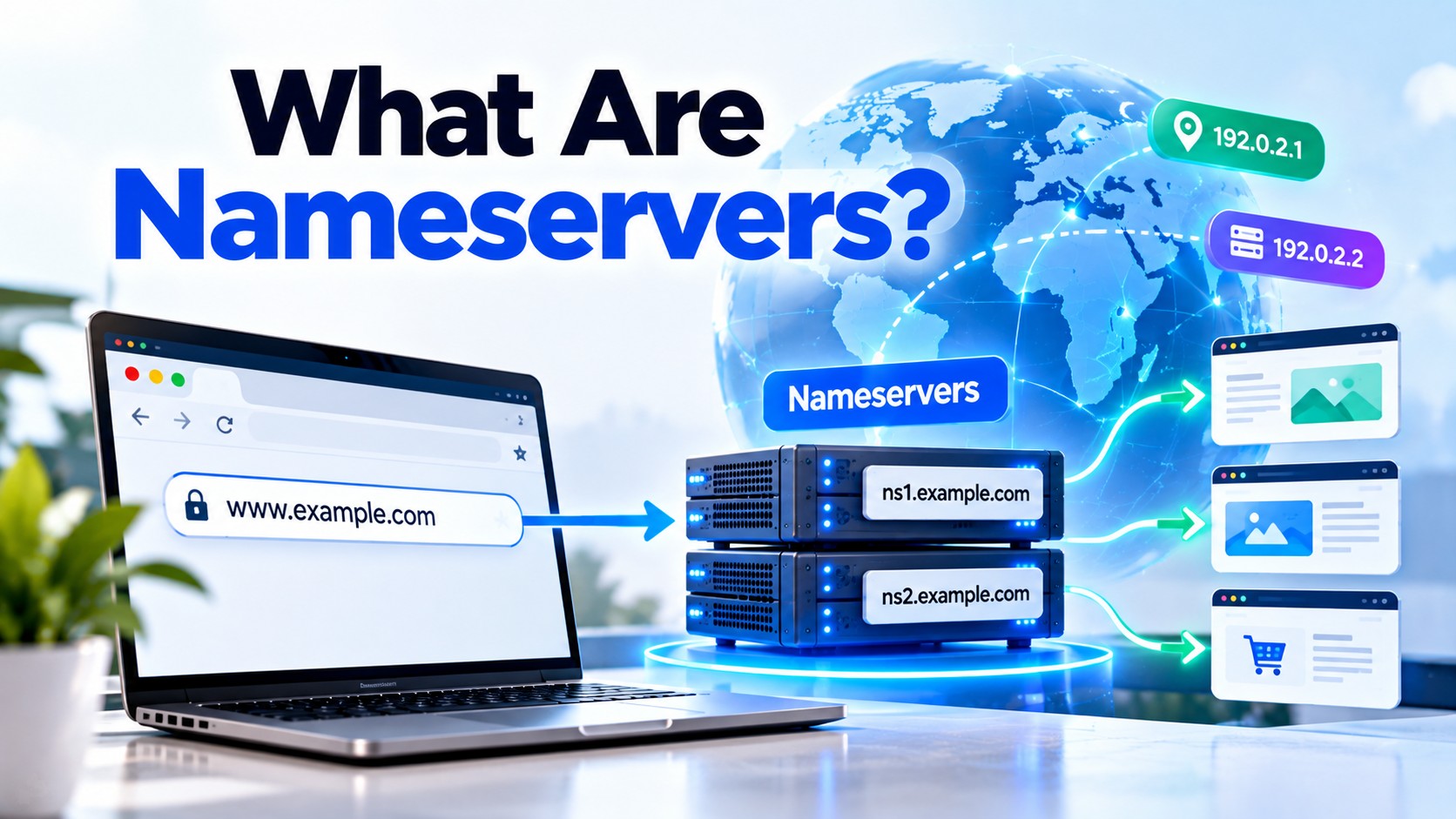
Nameservers: the servers that hold your domain's DNS records and tell browsers where your site lives. Cloudflare's guide to what DNS is shows the full lookup.
Your registrar is the company where you bought the domain, such as GoDaddy or Namecheap. Cloudflare explains what a domain name registrar does. Your hosting company is where the site lives. They are often different companies, which is why you need this step.
There are two common ways to connect them. You can change the nameservers, or you can edit an A record. Changing nameservers is easier for beginners, and it lets your host manage all your DNS records in one place. This guide uses that method.
What nameservers should I use for my hosting?
Short answer: Use the nameservers Ummah Host BD gave you. They usually come as a pair, often called ns1 and ns2. Copy them exactly as written.
For Ummah Host BD hosting, use the nameservers provided in your hosting welcome email or client area. Nameservers can differ between hosting plans and servers, so please don't guess.
You can find them here:
Your welcome email from Ummah Host BD.
Your client area or hosting dashboard.
A support ticket, if you can't find either.
Depending on your hosting service, you may see nameservers such as:
cdns1.servercpanel.com
cdns2.servercpanel.com
Always confirm the exact nameservers assigned to your hosting account before changing your domain settings.
Follow a few simple rules when you paste them:
Enter at least two nameservers.
Use lowercase letters, with no spaces before or after.
Leave out "http://" and any slashes.
Remove the old nameservers first, so the two sets don't mix.
Explore More Details: What Are Nameservers?
How do I change my domain nameservers?
Short answer: Log in to your registrar, open your domain's nameserver settings, switch to custom nameservers, paste the Ummah Host BD values, and save.
Menu names change between registrars. The steps below follow the most common layout. If your screen looks different, look for words like "DNS" or "Manage domain."
Collect your nameservers. Copy both from your Ummah Host BD welcome email.
Note your old nameservers. Take a screenshot or paste them into a note. You can restore them if needed.
Log in to your registrar. This is where you bought the domain.
Open your domain list. Click the domain you want to connect.
Find the nameserver section. It may sit under "Nameservers," "DNS," or "Domain settings."
Choose custom nameservers. Some registrars call this "Custom DNS" or "I'll use my own nameservers."
Replace the old values. Delete the old nameservers and paste the new ones.
Save your changes. Wait for the confirmation message.
Important: Do you use email with another provider, like Google Workspace? After the change, Ummah Host BD's servers answer for your domain, and your old DNS records don't carry over on their own. Before you switch, copy your email (MX) records. Then add them in cPanel's Zone Editor. If you skip this, email can stop arriving.
How do I connect a domain to cPanel hosting?
Short answer: Changing nameservers sends visitors to the right server. Then you make sure the domain is added inside cPanel, so the server knows which website files to show.
If this domain was your main domain when you signed up, it is usually added for you. You can skip to the check below. If it's an extra domain, add it yourself.
Here is the usual path:
Log in to cPanel from your Ummah Host BD account.
Open the Domains tool. On older versions it's called Addon Domains.
Click to create a new domain and type your domain name.
Confirm the document root, which is the folder that holds this site's files.
Save, then upload your website files or install WordPress into that folder.
Menus vary by version, and your host can switch some tools on or off. The cPanel documentation for the Domains interface lists each option. If you can't find the tool, ask Ummah Host BD support.
Quick check: Open your domain in a browser. You should see your site or a default hosting page. Also look for the padlock icon. If it's missing, ask your host whether a free SSL certificate is active on your plan, and how long it takes to appear.
Check More: Best cPanel Hosting Types Compared in 2026
How long does it take for nameserver changes to work?
Short answer: Often a few minutes to a few hours. Some changes need up to 48 hours to reach everyone. This wait is called DNS propagation.
Internet providers keep old DNS answers for a while to save time. That storage is called a cache. Each record also carries a time-to-live (TTL) value, which says how long to keep it. Until the cache expires, some people see the old site and others see the new one.
You can check progress in a few easy ways:
Open your site on mobile data instead of Wi-Fi.
Try a private browser window, or clear your browser cache.
Use a free DNS checker, such as whatsmydns.net, to see the nameservers from different locations.
Run nslookup -type=ns yourdomain.com in a command prompt.
The exact time depends on your registrar, your domain extension, and your internet provider. So treat 48 hours as a safe upper limit, not a promise.
What if my domain still doesn't work after changing nameservers?
Short answer: Wait a few hours first. If it still fails, check for typos, leftover old nameservers, or a domain that was never added in cPanel.
Work through this list in order:
Typos: Compare each nameserver letter by letter with your welcome email.
Old nameservers still listed: Remove them so only the new ones remain.
Domain not added in cPanel: Follow the cPanel steps above.
DNSSEC left on: If DNSSEC was active at your old provider, it can break lookups after the change. Ask your registrar to turn it off or update the keys. ICANN explains what DNSSEC is and why it matters.
Registrar lock or pending change: Some registrars hold changes for review. Check your email for a confirmation link.
Still stuck? Open a ticket with Ummah Host BD support: Include your domain name and the exact nameservers you entered.
Frequently asked questions
How do I point my domain to hosting?
Log in to your registrar, open the nameserver settings, and enter the nameservers from your hosting company. Save the change and wait for DNS propagation to finish.
How do I change my domain nameservers?
Open your domain's settings at the registrar. Choose custom nameservers, replace the old values with the new ones, and save. Keep a note of the old values in case you need to go back.
What nameservers should I use for my hosting?
Use the exact nameservers your host gave you. For Ummah Host BD, check your welcome email or client area. Don't copy values from another website.
How do I connect a domain to cPanel hosting?
Set the nameservers at your registrar. Then, in cPanel, add the domain under the Domains tool, or Addon Domains on older versions. Check the document root, then upload your site files.
Can I connect a domain without changing nameservers?
Yes. You can keep your current DNS provider and edit the A record to point to your hosting server's IP address. This works well if you want to keep the DNS settings elsewhere. It needs more care, so many beginners prefer the nameserver method.
Learn More: How to Transfer a Website to Another Hosting Provider

Author By
Anis Ur Rahman
Anis Ur Rahman writes domain and web hosting–related articles on behalf of Ummah Host BD. He works with domain name selection, web hosting, BDIX hosting, and website performance, and creates informational guides based on practical experience to help users make informed decisions. His writing focuses on providing reliable, easy-to-understand, and decision-supportive content.
Search Blog
Categories
- Problem Solving 3
- RDP Hosting 4
- SMS Service 17
- IP Number 11
- Reseller Hosting 5
- Promo Offer 2
- Achieve 3
- SSD Hosting 5
- cPanel Hosting 7
- BDIX Hosting 7
- Email Hosting 4
- Dedicated Server 7
- User Guide 0
- Security 4
- Online security 6
- Business 5
- SEO 3
- VPS Hosting service 32
- Manage Hosting 1
- domain hosting service 29
- Domain 1
- Hosting 41