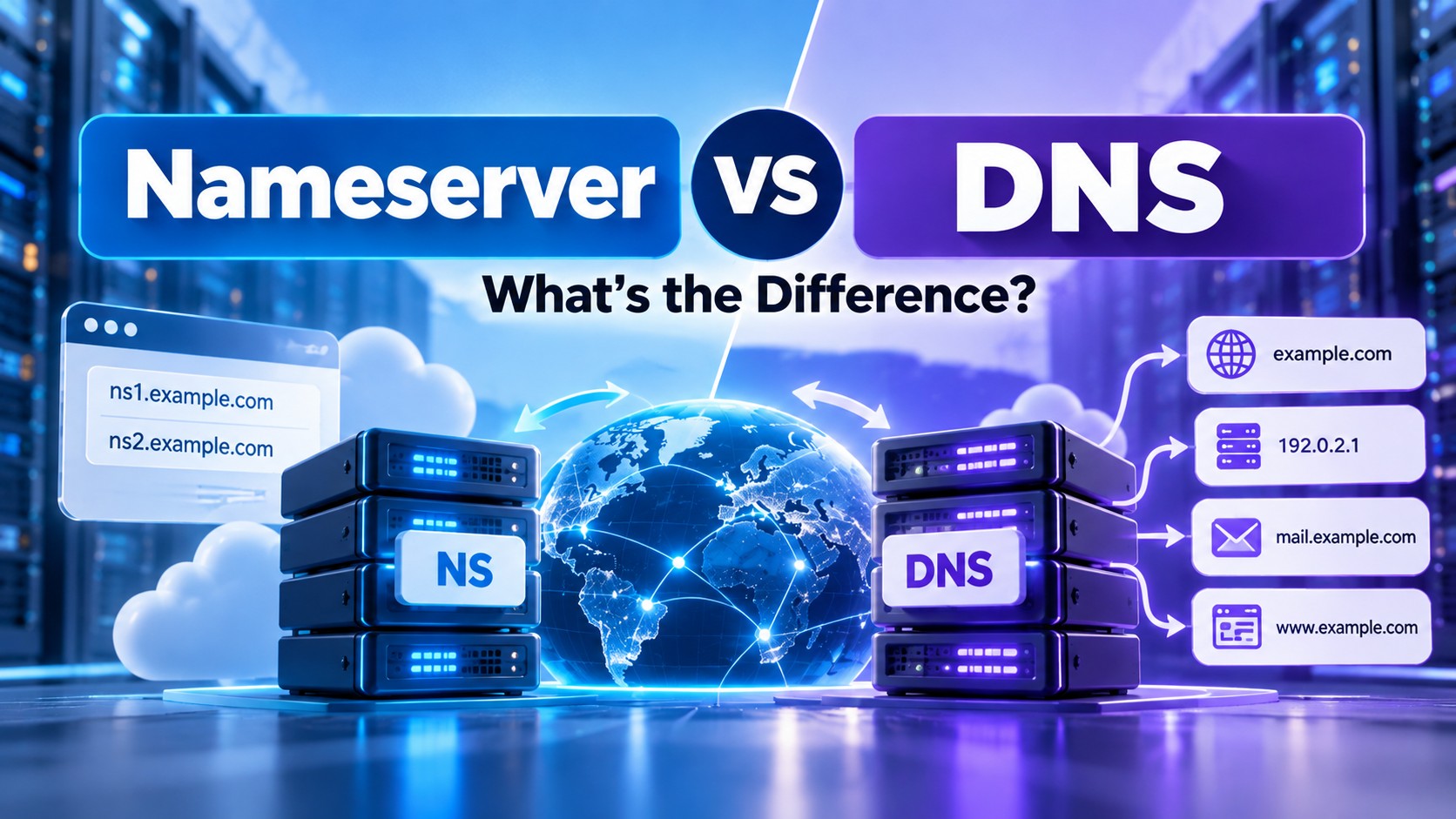
Nameserver vs DNS: What's the Difference?
- By Anis Ur Rahman
- 14 Oct, 2026
Key takeaway: DNS is the system that turns domain names into IP addresses. A nameserver is one kind of server inside that system, and it holds the official records for your domain.
So no, the two terms don't mean the same thing. DNS is the whole network of lookups, and nameservers are the machines that give the final answer for each domain.
If you've ever wondered why your registrar, your host, and your DNS panel all seem to say different things, this guide clears it up. You'll learn:
What DNS does
What a nameserver does
How the two work together
How to check your current nameservers
When it makes sense to change them
A quick way to picture it: DNS is the internet's phone book, and each nameserver is the shelf that holds the pages for specific domains.
Know More: How to Buy Domain & Hosting in Bangladesh
What Does DNS Do?
Short answer: DNS (the Domain Name System) translates names people can remember, like example.com, into the IP addresses computers use to find each other.
When you type a website address, your device doesn't know where that site lives. It asks for DNS, DNS replies with an IP address, and your browser loads the page. Without DNS, you'd need to memorize a string of numbers for every site you visit.
DNS does more than point to websites, though. It also tells the internet:
Where your website is hosted
Where your email should be delivered (MX records)
Which services may use your domain (TXT records)
No single computer holds all of this data. Servers around the world share the work, and nameservers are the ones that hold the records for each domain. For the formal definition, see the original specification, RFC 1034, or Cloudflare's plain-English guide, "What is DNS?".
What Is a Nameserver?
Short answer: A nameserver is a server that stores the DNS records for a domain and answers questions about it.
Every domain points to at least two nameservers. They usually look like ns1.yourhost.com and ns2.yourhost.com. Using two means your domain keeps working if one of them goes down.
Your nameserver holds records like these:
A record: points your domain to an IPv4 address
AAAA record: points your domain to an IPv6 address
CNAME record: points one name to another name
MX record: tells email where to go
TXT record: holds verification and security data
NS record: lists which nameservers are in charge of the domain
When someone asks, "Where is yourdomain.com?", your nameserver gives the answer. Because it has the final say for your domain, it's called an authoritative nameserver. All the records it holds for your domain are grouped together in what's known as a DNS zone.
Explore More Details: Complete Guide to DNS, Nameservers & Domain Pointing
Are Nameservers and DNS the Same Thing?
Short answer: No. DNS is the full system, and a nameserver is one component inside it.
Here's a side-by-side comparison:
People mix the two up because hosts and registrars use the words loosely. A company might say "manage your DNS" when it really means "edit the records on our nameservers." The meaning is close enough in daily use, but the difference matters when something breaks.
Is a Nameserver a DNS Server?
Short answer: Yes, a nameserver is a type of DNS server. But not every DNS server is the nameserver for your domain.
The term "DNS server" covers a few different jobs:
Authoritative nameservers hold the official records for a domain. This is what most people mean by "nameserver."
Recursive resolvers do the searching on your behalf. Your internet provider runs one, and so do public services like Google Public DNS (8.8.8.8) and Cloudflare (1.1.1.1).
Root and TLD servers point resolvers toward the right nameserver. They sit at the top of the hierarchy, handling the root zone and extensions like .com.
Cloudflare explains these roles in its guide to DNS server types if you want more depth.
So when a support article says "change your DNS server," it may mean the recursive resolver on your device. When it says "change your nameservers," it means the authoritative servers for your domain. These are two very different settings.
How Do Nameservers and DNS Work Together?
Short answer: Your browser asks a resolver, and the resolver follows a chain of servers until it reaches your domain's nameserver, which gives the final answer.
Here's the process step by step:
You type example.com into your browser.
Your device asks a recursive resolver.
The resolver asks a root server, which points it to the right TLD server (like .com).
The TLD server points to the domain's authoritative nameserver.
The nameserver returns the IP address.
Your browser connects and loads the site.
This usually happens very quickly. Resolvers also remember, or cache, answers for a set time called the TTL. That's why a DNS change doesn't always show up everywhere at once.
A simple example: Say you bought a domain from one company and host your website with another. The nameservers listed for your domain decide whose DNS records are used. If they point to your host, your host's records win. If they point to a separate DNS provider, that provider's records win, and anything you typed in the other panel is ignored.
A Complete Troubleshooting Guide: DNS and Nameserver Problems
When Should I Change Nameservers?
Short answer: Change nameservers when you want a different company to manage your domain's DNS records, usually when moving hosts or adding a DNS service.
Common reasons include:
Moving to a new web host. Many hosts ask you to use their nameservers.
Using a DNS or security provider. Services like Cloudflare typically require their own nameservers.
Wanting more reliable or faster DNS. Some providers offer extra features and redundancy.
Needing advanced controls. Examples are traffic routing and easier record management.
You often don't need to. If you only want to point your domain to a new server, editing the A record is usually enough, and it's the lower-risk option.
Before you switch:
Copy all your current DNS records first.
Recreate them at the new provider.
Double-check your MX records, because email is the first thing to break.
If your domain uses DNSSEC, check the DS record at your registrar before you switch. If it doesn't match the signing keys at your new nameservers, DNSSEC-validating resolvers may fail to resolve your domain. The exact steps depend on your registrar and DNS provider, so follow their official DNSSEC instructions. For background, see Cloudflare's guide to how DNSSEC works.
How to Change Nameservers (Step by Step)
Log in to your domain registrar.
Open the domain's settings and find the Nameservers section.
Choose "Custom nameservers" (the wording varies by registrar).
Enter the nameservers your new provider gave you.
Save your changes.
Wait for DNS propagation, then test your site and email.
How long does it take? Often it's quick, but a commonly cited range is up to about 24 to 48 hours for the change to reach everyone. Actual times vary by provider and by how long resolvers cache the old data. Treat that range as an estimate and check with your registrar or new DNS provider for your case.
Read Step-by-Step Guide: How to Find Nameservers in cPanel
Common Mistakes to Avoid
Editing records in the wrong place. Only the records at your active nameservers count. Records at an old provider are ignored.
Forgetting email records. If you don't copy your MX and TXT records, email can stop working after the switch.
Switching nameservers when an A record edit would do. If you only need to point your site to a new server, changing the A record is usually the simpler path.
Ignoring DNSSEC. If it's enabled, an old DS record left at your registrar can conflict with your new provider's keys and cause lookup failures. Follow your registrar's and DNS provider's official DNSSEC steps before you switch.
Expecting instant results. Some visitors may see the old site for a while because resolvers cache answers. That's normal.
Bottom Line
DNS is the system, and nameservers are the servers that answer for your domain. Before you change anything, run a quick NS lookup to see where your records live, copy every existing record, and ask yourself whether an A record edit would solve the problem instead.

Author By
Anis Ur Rahman
Anis Ur Rahman writes domain and web hosting–related articles on behalf of Ummah Host BD. He works with domain name selection, web hosting, BDIX hosting, and website performance, and creates informational guides based on practical experience to help users make informed decisions. His writing focuses on providing reliable, easy-to-understand, and decision-supportive content.
Search Blog
Categories
- Problem Solving 3
- RDP Hosting 4
- SMS Service 17
- IP Number 11
- Reseller Hosting 5
- Promo Offer 2
- Achieve 3
- SSD Hosting 5
- cPanel Hosting 7
- BDIX Hosting 7
- Email Hosting 4
- Dedicated Server 7
- User Guide 0
- Security 5
- Online security 6
- Business 5
- SEO 3
- VPS Hosting service 33
- Manage Hosting 1
- domain hosting service 29
- Domain 1
- Hosting 43
Latest News
14 Oct, 2026