DNS and Nameserver Problems: A Complete Troubleshooting Guide
- By Anis Ur Rahman
- 06 Sep, 2026
DNS is one of the first places to investigate when a website, email service, or subdomain suddenly stops working. A domain can be registered and the hosting account can be healthy while the DNS zone still points to an old server, uses the wrong nameservers, or contains conflicting records. This guide explains a practical troubleshooting path that starts with the simplest checks and moves toward server-side investigation.
Why this topic matters
This article was developed around recurring issue themes found in the provided support-ticket knowledge export, especially domain, cPanel, website, server, hosting, SSL, login, nameserver, email, WordPress, backup/restore, payment/refund, verification and security topics.
Why DNS problems happen
A domain name is only useful when DNS can translate it into the correct service destination. Common failures include incorrect authoritative nameservers, an outdated A record, a wrong CNAME, missing MX records, or changes made in more than one DNS provider at the same time.
Another common source of confusion is editing DNS in the wrong dashboard. Your registrar may show DNS controls, while your hosting company or a third-party DNS provider is actually authoritative. The authoritative DNS provider is the place where the live zone must be corrected.
Step 1: Check the domain and authoritative nameservers
Start by confirming that the domain is active and that the nameservers match the DNS service you intend to use. Do not mix two different DNS systems unless you understand which one is authoritative.
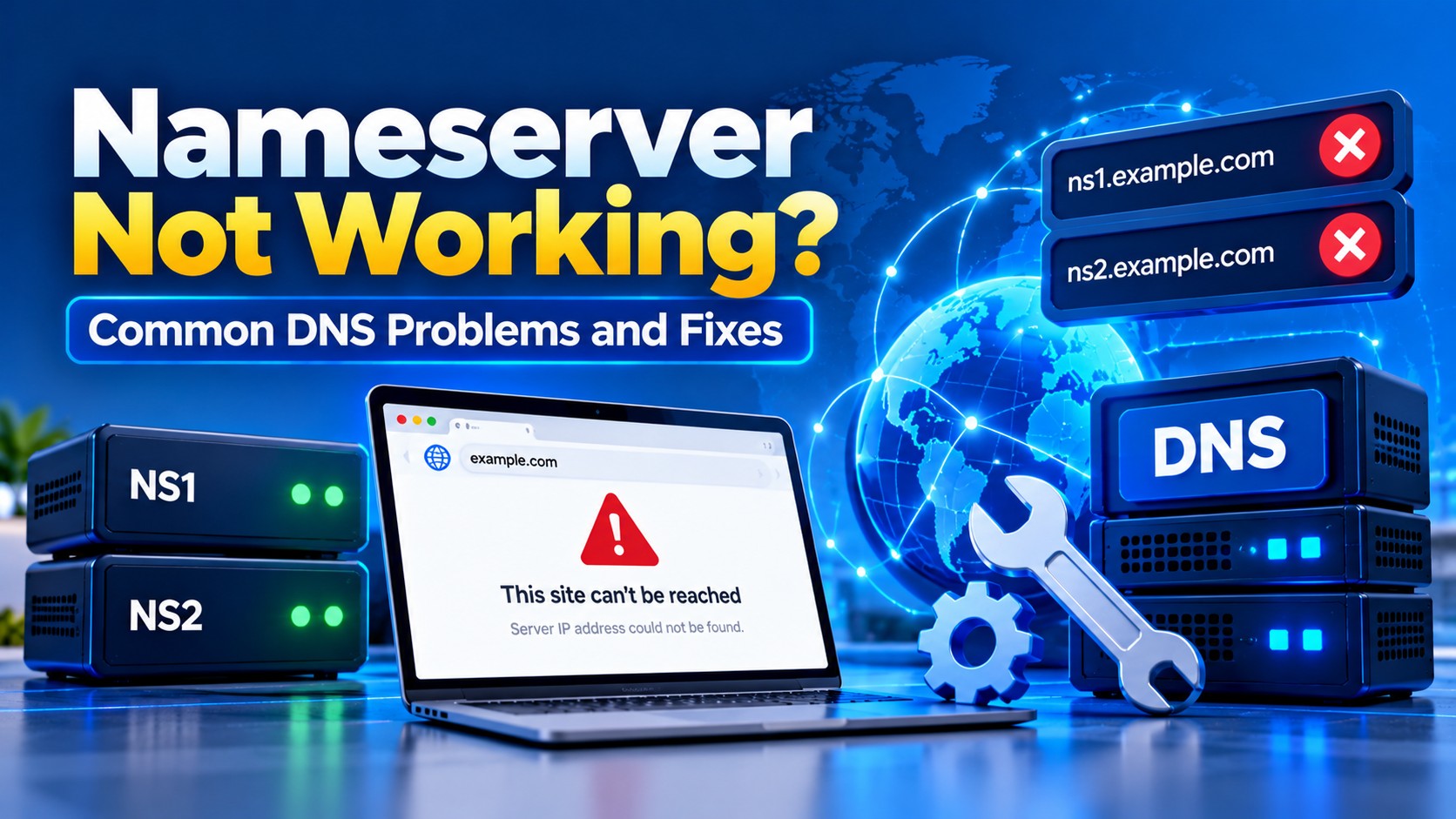
For a cPanel-based hosting setup, the provider may give two nameservers such as ns1.example.com and ns2.example.com. Enter the exact values supplied by the provider and remove obsolete nameservers that point to a previous host.
Step 2: Verify the main DNS records
For a typical website, the root domain normally resolves through an A record or an appropriate alias arrangement. The www hostname may use a CNAME or its own A record. Subdomains need their own records when they point to a separate service.
Check that the record value matches the current destination. An old server IP, typo, or duplicate record can cause intermittent behavior. Avoid adding multiple records simply because one result does not appear immediately; first determine what the authoritative zone contains.
Step 3: Troubleshoot DNS_PROBE_FINISHED_NXDOMAIN
NXDOMAIN generally means that the resolver cannot find the requested domain name in DNS. Verify that the domain exists, the nameservers are correct, and the required DNS record exists at the authoritative provider.
Test from more than one network or DNS resolver. If the domain works in one location but not another immediately after a DNS change, cached data may still be involved. Do not assume that every propagation problem will resolve on a fixed timetable.
Step 4: Check DNS propagation and cache
DNS changes are cached according to TTL values and by recursive resolvers. This means different users can temporarily see different answers. A lower TTL before a planned migration can reduce the time stale data remains in caches, but changing TTL after the fact cannot instantly clear every cache.
During a migration, keep the old service available long enough to cover the transition whenever practical. This reduces the risk of users reaching a server that has already been shut down while caches still contain the previous address.
Step 5: Email DNS is separate from website DNS
A website can load while email is broken because email delivery depends primarily on MX and related sender-authentication records. If mail is not arriving, inspect MX records first, then confirm the receiving mail service and its DNS requirements.
For outbound delivery, SPF, DKIM, DMARC, and reverse DNS can all matter. These records serve different purposes and should not be treated as interchangeable.
Quick DNS checklist
- Confirm the domain is active and not expired.
- Confirm the authoritative nameservers are the intended ones.
- Verify A, AAAA, CNAME, MX, and TXT records where applicable.
- Remove stale or conflicting records carefully.
- Test from multiple resolvers and networks.
- Check server-side configuration only after DNS answers are correct.
When to contact your hosting provider
Contact support when the authoritative DNS is correct but the service still fails, when you need provider-specific nameserver values, when cPanel records are being generated incorrectly, or when the server itself is unreachable. Send the domain, the exact error, and the approximate time the issue started. Avoid sending passwords or other credentials in a public ticket.
Frequently Asked Questions
How long does DNS propagation take?
There is no single guaranteed duration. Cached responses depend on TTL values and resolver behavior, so different users may see changes at different times.
Can I use two different DNS providers at once?
A domain normally delegates to one authoritative nameserver set at a time. Multiple providers require a deliberate DNS architecture; simply mixing nameservers can produce inconsistent or broken resolution.
Why does my website work on mobile data but not Wi-Fi?
Different networks can use different recursive resolvers and cached DNS data. Compare the DNS answers returned by each network before changing records again.

Author By
Anis Ur Rahman
Anis Ur Rahman writes domain and web hosting–related articles on behalf of Ummah Host BD. He works with domain name selection, web hosting, BDIX hosting, and website performance, and creates informational guides based on practical experience to help users make informed decisions. His writing focuses on providing reliable, easy-to-understand, and decision-supportive content.
Search Blog
Categories
- AI Tools & Automation 3
- Problem Solving 4
- RDP Hosting 4
- SMS Service 17
- IP Number 11
- Reseller Hosting 5
- Promo Offer 2
- Achieve 3
- SSD Hosting 5
- cPanel Hosting 7
- BDIX Hosting 7
- Email Hosting 4
- Dedicated Server 8
- User Guide 0
- Security 5
- Online security 6
- Business 5
- SEO 3
- VPS Hosting service 33
- Manage Hosting 1
- domain hosting service 29
- Domain 1
- Hosting 46
Latest News


18 Oct, 2026


