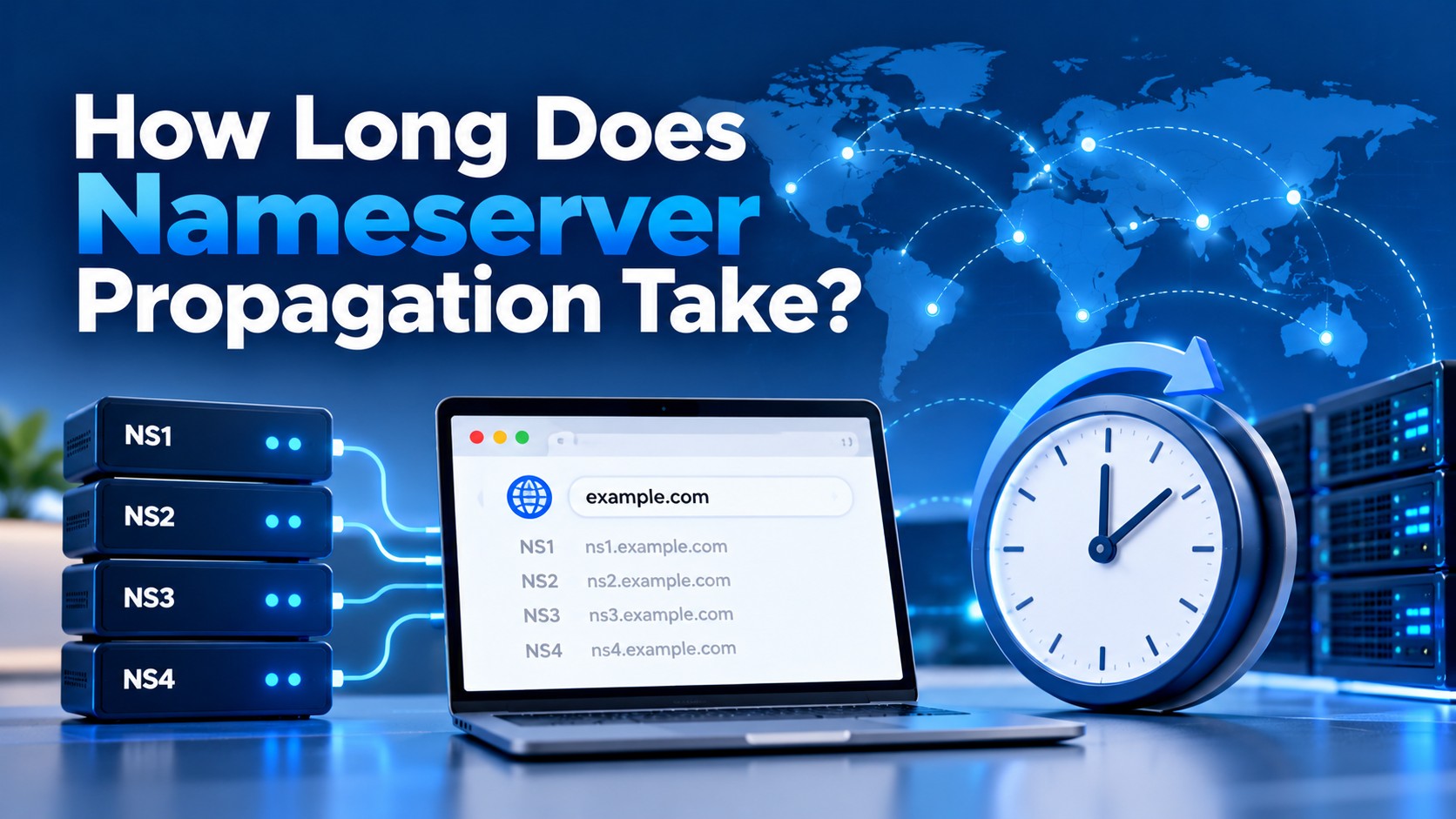
How Long Does Nameserver Propagation Take?
- By Admin
- 18 Oct, 2026
You changed your nameservers, and now your website either won't load or still shows the old version. In most cases, nothing is broken. You are simply waiting for nameserver propagation to finish across the internet.
This guide explains how long nameserver propagation takes, why the delay happens, and how to check its progress. It also covers what to do if your site still isn't working once the normal waiting period is over.
Quick Answer Nameserver propagation is the time it takes for DNS servers worldwide to learn your domain's new nameservers. It usually finishes within a few hours, but it can take up to 24–48 hours to reach every network. The delay comes from DNS resolvers, such as your ISP's, holding a cached copy of your old nameservers until it expires. If your site still fails after 48 hours, check the registrar delegation, DNS records, DNSSEC and hosting configuration rather than assuming propagation is the only cause.
Who This Guide Is For
This guide is for anyone who has just pointed a domain to a new host or DNS provider, including:
Business owners in Bangladesh moving a website to new hosting
Freelancers and developers launching client sites
Bloggers switching to WordPress hosting in Bangladesh
Site owners connecting a domain to Cloudflare for the first time
How this guide was made: We built it from official documentation published by Cloudflare, ICANN and BTCL, together with standard DNS checks that anyone can repeat. Every claim that relies on an outside source links to that source, so you can verify it yourself.
What Is Nameserver Propagation?
In simple terms, nameserver propagation is the period when the internet is still learning where your domain now lives.
Think of your nameservers as the address your domain has on file. When you move to a new host, you update that address at your domain registrar. However, thousands of DNS resolvers around the world have already saved your old address. Each resolver keeps that saved copy until its TTL (Time To Live) runs out, and only then asks for the new one. Because every resolver refreshes on its own schedule, the change spreads gradually instead of everywhere at once.
Explore Details Guide: What Are Nameservers?
How Long Does Nameserver Propagation Take in Practice?
Most people see the change within a few hours, but you should allow 24–48 hours for full worldwide propagation.
The nameserver update time has two stages:
Registrar processing. Your registrar sends the change to the registry that runs your domain ending. According to Cloudflare's guide to changing nameservers, some registrars can take up to 24 hours to process a nameserver update.
Cache expiry. DNS resolvers keep your old nameserver records until their TTL expires, and that TTL is set by the registry rather than by you.
For .com domains, the registry commonly publishes nameserver records with a TTL of 172,800 seconds (48 hours). That long cache time is one reason the 24–48 hour window is so widely quoted for DNS propagation after a nameserver change.
Nameserver Change vs. DNS Record Change
These are typical ranges, not guarantees. Your real DNS propagation time depends on your registrar, your domain ending, and your visitors' internet providers.
Know More: Nameserver vs DNS in your Domain
Why Does Nameserver Propagation Take So Long?
In short, caching. Caching keeps browsing fast for everyone, but it also means changes take time to reach every network.
These factors decide how long your wait will be:
Registry TTL: The registry for your domain ending sets how long resolvers may cache its nameserver records, and you cannot change it.
Registrar speed: Some registrars publish updates within minutes, while others process changes in batches.
ISP caching: Some internet providers keep DNS data longer than the TTL allows, which can stretch the wait past 48 hours.
Local caches: Your browser, operating system, and Wi-Fi router can each hold onto old DNS answers.
Domain ending: Each domain ending has its own registry, so timing can vary by registry and registrar. Bangladesh's .bd and .com.bd domains are handled through BTCL's domain service, and its FAQ simply says DNS propagation will take some time, without giving a fixed timeframe.
This is why a colleague in Chattogram may see your new site while you, in Dhaka, still see the old one. You are both asking different DNS resolvers, and each one refreshes on its own timer.
How Do I Check Nameserver Propagation?
You can check your nameserver propagation in about a minute with free tools. Follow these steps:
Confirm the change at the source. Look up your domain with our free WHOIS lookup tool or the official ICANN Lookup. The nameservers listed there should exactly match the ones your new host gave you.
Check worldwide results. Open the Ummah Host BD DNS Checker tool or whatsmydns.net, enter your domain, and choose NS as the record type.
Read the map. Locations showing your new nameservers have updated. A mix of old and new results simply means propagation is still in progress.
Test from your own computer. On Windows, open Command Prompt and run nslookup -type=ns yourdomain.com. On Mac or Linux, run dig NS yourdomain.com.
Compared with a public resolver. Run nslookup yourdomain.com 8.8.8.8 (Google Public DNS) or nslookup yourdomain.com 1.1.1.1 (Cloudflare DNS). If these show the new data but your normal connection doesn't, your ISP's cache is the only thing still catching up.
Keep in mind that online checkers also rely on cached answers. Their results can therefore trail the real state of your domain by a little while.
Why Is My Website Not Working After Changing Nameservers?
It could be propagation, a configuration error, or both. A wrong setting can break your site from the very first minute, while a perfectly valid change can still take longer than 48 hours on some networks. Don't assume the clock alone tells you the cause.
Check these common causes one by one, whatever the time since your change:
A typo in the nameservers. A single wrong character stops your domain from resolving, so copy the nameservers directly from your hosting welcome email or client area.
Nameservers that don't match exactly. Cloudflare's nameserver troubleshooting checklist notes that a domain won't resolve correctly unless the nameservers at the registrar exactly match the provider's, and it recommends removing any extra ones.
A DNSSEC (DS) record mismatch. If your domain uses DNSSEC, a DS record at the registrar that doesn't match the new DNS provider's keys can stop the domain from resolving for validating resolvers. Check your DNSSEC status before the switch, then follow your registrar's and new DNS provider's documented procedure. Some providers ask you to disable DNSSEC first, while others, such as Cloudflare's multi-signer migration, let you move without switching it off.
Missing DNS records at the new host. New nameservers can't help if the new DNS zone has no A record pointing to your website's server.
Missing glue records for custom nameservers. If you use private nameservers such as ns1.yourdomain.com, you must register them (as child nameservers) with their IP addresses at your registrar first.
A locked or expired domain. A domain under transfer, registrar lock, or redemption status may reject nameserver changes.
An SSL warning instead of your site. Free certificates from cPanel's AutoSSL or Let's Encrypt can usually only be issued once the domain points to the new server. A short "Not secure" warning during propagation is therefore common.
Still Not Working After 48 Hours?
If your site still fails after 48 hours, check the registrar delegation, DNS records, DNSSEC and hosting configuration rather than assuming propagation is the only cause. Start by looking up your domain on ICANN Lookup (or the BTCL portal for .bd domains) to confirm the new nameservers are listed. If the old ones still appear, the change may not have been saved or published at your registrar. If the new ones appear, move on to your DNS records, your DNSSEC status and your hosting account. At that point, contact our support team with your domain name and the time you made the change.
Why Is My Old Website Still Showing?
Your browser, device, router, or ISP is still serving a cached copy of your old DNS data. The old site disappears on its own once that cache expires, but you can often speed things up on your side:
Open your site in a private or incognito window, which skips most browser caching.
Flush your DNS cache. On Windows, run ipconfig /flushdns. On a Mac, run sudo dscacheutil -flushcache; sudo killall -HUP mDNSResponder.
Restart your Wi-Fi router, because many home routers keep their own DNS cache.
Test on mobile data, which uses a different network and a different DNS resolver.
Keep your old hosting account active until propagation is complete. If you cancel it too early, visitors whose resolvers still point to the old server will land on an error page instead of your website.
Can You Speed Up Nameserver Propagation?
Not really, because you can't control the registry's TTL or other people's ISPs. You can, however, make the switch much smoother.
Record TTL vs. Nameserver Delegation TTL
It helps to know that two different TTLs are involved, and you control only one of them:
Lowering the TTL on your A or MX records before a migration can shorten how long resolvers cache those records. However, it does not necessarily make a nameserver change at your registrar propagate faster. Resolvers may keep the old delegation until the registry's TTL expires. Lowering record TTLs still helps by reducing how long the old A or MX values linger once resolvers start asking the new nameservers.
With that in mind, these steps make a switch smoother:
Lower your record TTLs in advance. About 24–48 hours before a migration, set the TTL on your A and MX records to 300 seconds (five minutes) at your current DNS provider. This mainly helps if you are also changing record values, such as a new server IP.
Copy every DNS record first. Recreate your A, MX, and TXT records at the new host before you change nameservers, so email and verification records keep working.
Run both hosts side by side. Keep the old and new sites live and identical for about 48 hours.
Choose a quieter time. For many sites aimed at Bangladeshi visitors, late night is a quieter period, but check your own analytics to be sure.
If you only need to point your site to a new server IP, consider editing the A record instead of changing nameservers. An A record change depends on a TTL you control, so with a low TTL it often reaches visitors faster than a nameserver change.
What a Nameserver Switch Usually Looks Like
This is a composite walkthrough of a common situation, not a specific customer record.
Imagine a small online shop in Dhaka moving from an overseas host to BDIX web hosting for faster local load times. The owner updates the nameservers at his registrar at 10 PM, but he keeps the old hosting account running.
The next morning, staff using mobile data see the new site, while the office broadband connection still loads the old one. A worldwide NS check shows that most locations have already updated, which means only the office ISP is still serving an old cache. After a router restart and a DNS flush, the office also sees the new site. By the following evening, every checked location shows the new nameservers.
In this kind of case, mixed results are a sign the switch is working. They simply mean some resolvers haven't refreshed yet.
Key Takeaway
Nameserver propagation is normal and temporary. Most changes appear within a few hours, though some networks can take 48 hours or longer. Lowering your record TTLs helps those records refresh faster, but it doesn't speed up the registry's nameserver delegation. If your website still fails after 48 hours, check the registrar delegation, DNS records, DNSSEC and hosting configuration rather than assuming propagation is the only cause.
Need Help With Your Nameserver Change?
The Ummah Host BD support team can check your nameservers, set up your DNS records, and help you move your website without losing email or data.
Contact our support team or transfer your domain to Ummah Host BD to get started.
Check Ummah Host BD Nameserver Guide: How to Point Domain to Hosting
Frequently Asked Questions
How long does nameserver propagation take?
Usually a few hours. Full worldwide propagation can take up to 24–48 hours, and occasionally a little longer if an ISP caches beyond the TTL.
How long does DNS propagation take?
For regular DNS records like A or MX, it depends on the TTL you set. With a low TTL, changes can appear in minutes. Nameserver changes are slower because the registry controls their TTL.
Why is my website not working after changing nameservers?
It may still be propagating, but a configuration error can also be the cause at any point. Check for nameserver typos, extra or mismatched nameservers, a DNSSEC (DS record) mismatch, missing glue records, or missing DNS records at your new host.
Why is my old website still showing?
Your browser, device, router, or ISP still has the old DNS cached. Try an incognito window, flush your DNS cache, restart your router, or test on mobile data.
How do I check nameserver propagation?
Enter your domain on a tool like whatsmydns.net or the Ummah Host BD DNS Checker, and choose the NS record type. Locations showing your new nameservers have updated.
Will my website go down during nameserver propagation?
Not if both your old and new hosting are set up and running. Visitors will then reach one version or the other. Cancelling the old hosting too early can cause errors for some visitors.
Is nameserver propagation slower for .com.bd domains?
There is no published guarantee either way. Timing can vary by registry and registrar, and BTCL's domain FAQ says only that propagation takes some time. Allow time for caches to refresh, and confirm the new nameservers in the BTCL portal.
Does changing nameservers affect my email?
Yes, it can. Your email follows the MX records at your new nameservers. Recreate your MX records at the new host before switching, or email may stop for some senders.

Author By
Admin
Search Blog
Categories
- AI Tools & Automation 3
- Problem Solving 3
- RDP Hosting 4
- SMS Service 17
- IP Number 11
- Reseller Hosting 5
- Promo Offer 2
- Achieve 3
- SSD Hosting 5
- cPanel Hosting 7
- BDIX Hosting 7
- Email Hosting 4
- Dedicated Server 7
- User Guide 0
- Security 5
- Online security 6
- Business 5
- SEO 3
- VPS Hosting service 33
- Manage Hosting 1
- domain hosting service 29
- Domain 1
- Hosting 45
Latest News
18 Oct, 2026