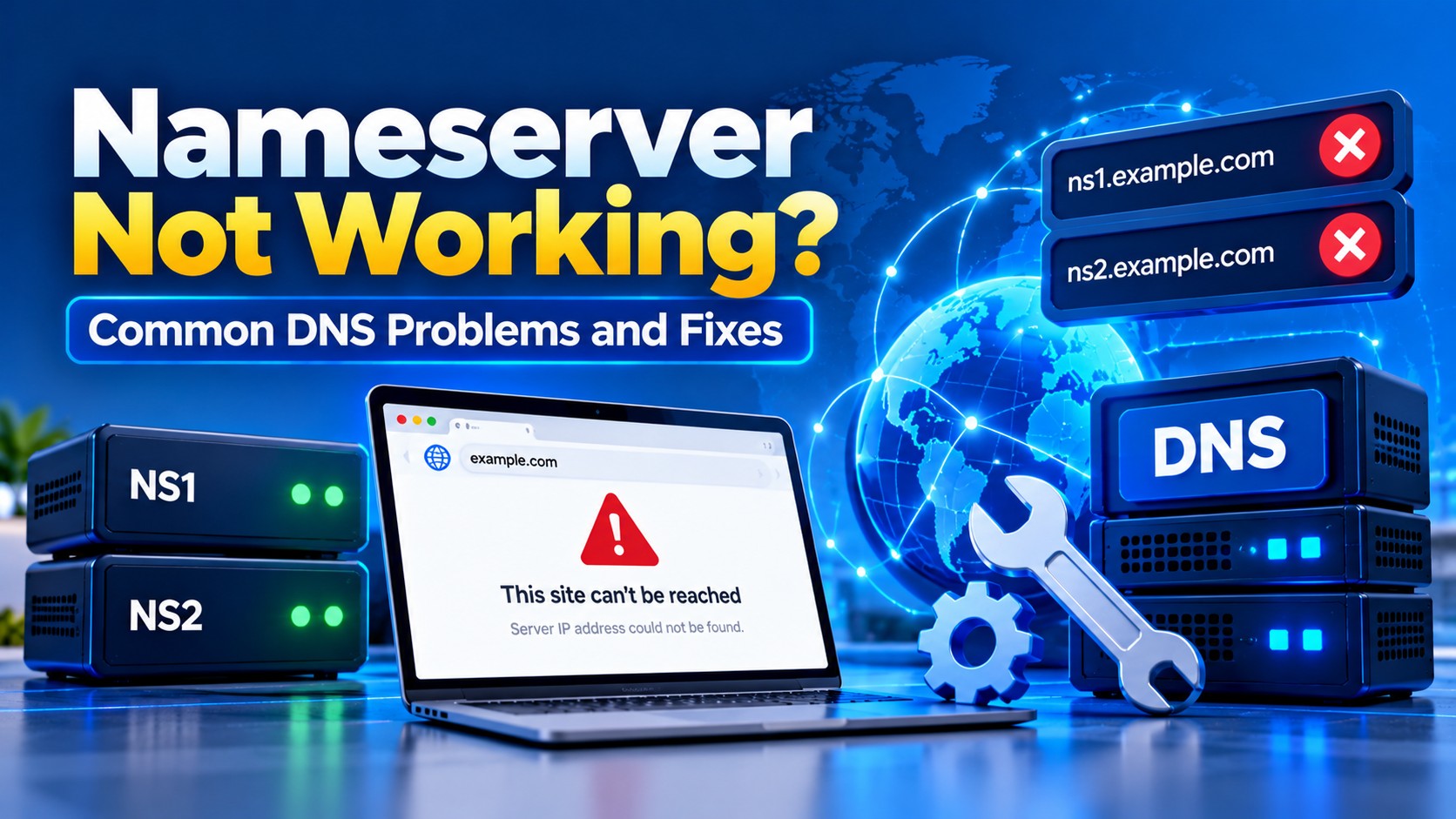
Nameserver Not Working? Common DNS Problems and Fixes
- By Anis Ur Rahman
- 19 Oct, 2026
You bought a domain, set up hosting, and changed the nameservers. But your site still won't load. Sound familiar? When your nameserver is not working, the cause is usually small: a typo, an expired domain, or a cache that hasn't refreshed yet. Below are the problems that most often cause a nameserver error, how to spot each one, and how to fix it. It's written for website owners in Bangladesh and beyond, whether your domain is a .com or a .com.bd.
Quick answer
Bottom line: Most "nameserver not working" problems come from one of five things: wrong nameservers at the registrar, normal DNS propagation delay, an expired or suspended domain, missing DNS records on the new host, or an old cache on your device. Check your nameservers with a WHOIS or DNS lookup first. That one check solves most cases in minutes.
Key takeaways
Nameservers are changed at your domain registrar, not inside your hosting panel.
Changes are not instant. Old answers can stay cached for hours, sometimes up to 1–2 days.
A domain that has expired or is on hold will not resolve, even with correct nameservers.
Your new host must have a DNS zone (an A record) for your domain, or it can't answer.
Flushing your local DNS cache often fixes the "old server" problem on your own device.
What is a nameserver, in simple words?
A nameserver is the address book for your domain. When someone types your domain, their browser asks, "Where does this site live?" The nameserver answers with the server's IP address.
Think of it like a building's reception desk. Your registrar tells the world which reception desk to visit. If that desk is wrong, closed, or has no record of you, visitors get lost. That is exactly what a nameserver error feels like.
Why are my nameservers not working?
Short answer: Your nameservers usually fail because they were typed wrong, haven't propagated yet, or point to a host that has no record of your domain.
Here are the most common causes:
Typos or wrong values. One wrong letter, like ns1.examplehots.com instead of ns1.examplehost.com, breaks everything.
Changed in the wrong place. Many people edit DNS inside cPanel and expect the domain to follow. The nameservers live at your registrar.
Propagation delay. Resolvers around the world cache old answers until their TTL (time to live) runs out.
Domain status problems. An expired, unpaid, or suspended domain stops resolving.
Empty DNS zone. The new host hasn't added your domain yet, so its nameservers have nothing to say.
Read More: What Are Nameservers of your Domain?
Why is my domain not resolving?
Short answer: If a domain doesn't resolve at all, check its status and expiry date first, then confirm that the nameservers actually answer for it.
Run a WHOIS or RDAP lookup with our Whois lookup tool, and look at three things:
Expiry date. Has the domain lapsed? Renew it, then wait for DNS to refresh.
Domain status. Look for clientHold, serverHold or inactive. According to ICANN's guide to EPP status codes, each of these means the domain is not active in DNS. clientHold is set by the registrar, often over non-payment or a dispute. Contact your registrar to clear it.
Listed nameservers. Do they match what your host gave you, character for character?
Still stuck? Your nameservers might be "lame," meaning they're listed but don't respond for your domain. That points to a missing zone on the hosting side.
How do I fix incorrect nameservers?
Short answer: Log in to your registrar, replace the old nameservers with the exact ones your host gave you, save, and then wait for propagation.
Follow these steps:
Get the right values. Find the nameservers in your hosting welcome email or client area. Copy them; don't retype them.
Log in to your registrar. This is where you bought the domain. It may not be the same company as your host.
Open nameserver settings. Look for "Nameservers," "Manage DNS," or "Custom nameservers."
Replace, don't add. Remove the old entries completely. Mixing old and new nameservers gives random results.
Save and confirm. Check with our DNS Checker or run nslookup -type=ns yourdomain.com.
Wait patiently. Give it a few hours before you panic.
Using your own branded nameservers, like ns1.yourdomain.com? You also need glue records at the registrar. Your nameserver lives on your domain, so the internet needs its IP address from somewhere else first. Glue records provide that address.
Why is my domain not pointing to hosting?
Short answer: The nameservers may be correct, but the A record inside the DNS zone still points to an old or wrong IP address.
Nameservers only decide who answers. The A record decides what the answer is. So check both.
Log in to your hosting panel and open Zone Editor. New to the panel? Our cPanel hosting guide shows where things are.
Find the A record for yourdomain.com and www.
Make sure the IP matches your hosting server's IP from your welcome email.
Here's a common mix-up. Someone points nameservers to a DNS service like Cloudflare, but sets the A record there to the old server. The domain resolves fine. It just goes to the wrong place.
Explore More: How to Point Domain to Hosting
Why is my website showing the old server?
Short answer: Your device, browser, or internet provider is still holding a cached copy of the old DNS answer. Clearing caches usually fixes it.
Your friend in Chittagong may see the new site while you still see the old one in Dhaka. Each DNS resolver keeps its own cache, so different networks update at different times.
Try these fixes in order:
Windows: open Command Prompt and run ipconfig /flushdns.
macOS: run sudo dscacheutil -flushcache; sudo killall -HUP mDNSResponder in Terminal (the command can vary by macOS version).
Google Chrome: visit chrome://net-internals/#dns and click "Clear host cache."
Google Public DNS: use the Google Public DNS Flush Cache tool to make Google's resolver fetch fresh records for your domain.
Switch networks. Test on mobile data to rule out your ISP's cache.
Try a public resolver. Google Public DNS (8.8.8.8) or Cloudflare (1.1.1.1) may refresh sooner than your ISP.
A note on TTL: lowering it only shortens how long those DNS records stay cached. It does not speed up a nameserver change at your registrar. See the next section for the difference.
How long does DNS propagation take?
Short answer: There's no fixed time. Many changes show up within a few hours, but registrars commonly advise allowing up to 24–48 hours. How long it takes depends on what you changed.
Two kinds of change behave differently:
Record changes. As Cloudflare's TTL documentation explains, TTL controls how long each record is cached. A longer TTL means updates take longer to reach users. So if you lower an A record's TTL a day ahead, then change its IP, resolvers drop the old answer sooner.
Nameserver changes. Your registrar first has to pass the new nameservers to the registry. Then resolvers may keep using the old nameserver set until their cache expires. Lowering TTLs inside your zone doesn't change either step. Timing can also vary by domain extension and provider, including .com.bd. Check with your registrar instead of relying on a fixed number.
Migration tip. Because nameserver changes can't be rushed, keep your old hosting and old DNS zone active until the new setup answers everywhere. That way, visitors who still reach the old nameservers see a working site, not an error.
Check Our Full Guide About: Nameserver Propagation Time
How do I fix DNS_PROBE_FINISHED_NXDOMAIN?
Short answer: This Chrome error means DNS said your domain doesn't exist. Check spelling, domain status, and nameservers, then flush your DNS cache.
NXDOMAIN stands for "non-existent domain." You'll see it in Google Chrome when no DNS record comes back. Work through this checklist:
Check the spelling of the address you typed.
Confirm the domain is active and not expired, using WHOIS.
Verify nameservers at the registrar, as shown above.
Flush DNS on your device and in Chrome.
Restart your router to clear its small cache.
Test another device or network. If it works elsewhere, the problem is local.
Disable VPN or proxy apps for a moment, since they can use their own DNS.
If the error appears everywhere, on every network, the problem is on the domain side. That's when it's time to contact your registrar or host.
What does "DNS server not responding" mean?
Short answer: Your device can't reach a DNS resolver at all. It's usually a local network or router issue, not a problem with your domain or nameservers.
Quick fixes:
Restart your router and your device.
Switch your device's DNS to 8.8.8.8 or 1.1.1.1.
Turn off VPN or firewall apps briefly to test.
If other websites also fail, contact your internet provider.
How can you prevent nameserver problems?
Short answer: Turn on auto-renew, copy nameservers exactly, plan migrations so the old site stays live, and check your setup right after any change.
Enable auto-renew so your domain never lapses by accident.
Keep your registrar and hosting logins in a safe password manager.
Moving to a new IP but keeping the same DNS provider? Lower that record's TTL about 24 hours early. Changing nameservers? Keep the old hosting and DNS zone running until the switch is complete, since TTL won't speed that up.
Take a full website backup before any DNS or hosting move.
Test with a DNS checker right after saving changes.
Keep your registrar contact email current, so you don't miss verification emails.
Want domain and hosting in one place? You can transfer your domain to the same provider as your hosting.
When should you contact your host or registrar?
Short answer: Reach out if the domain shows a hold status, if nameservers stay wrong after 48 hours, or if the error appears on every network.
At that point, the issue is likely outside your device. If you're an UmmahHostBD customer, the technical team can check your zone and nameservers through WhatsApp technical support or live chat. Send your domain name and a screenshot of the error in your first message. That saves a round of back-and-forth.
Final thoughts
When a nameserver is not working, run four checks in order: the nameservers at your registrar, the domain's status, the A record on your host, and your local cache. Most cases end at one of those four checks. If yours doesn't, contact support with your domain name and a screenshot. Planning a move? Compare our web hosting plans and ask the team to handle the DNS setup for you.
Frequently Asked Questions
Can I change nameservers from cPanel?
No. cPanel manages DNS records on your hosting server. Nameservers are set at your domain registrar.
Is a nameserver the same as a DNS server?
Not exactly. An authoritative nameserver holds your domain's records. A recursive DNS server, like your ISP's, looks those records up for users.
Why does my site work on mobile data but not on Wi‑Fi?
Your Wi‑Fi router or ISP is likely caching an old DNS answer. Restart the router and flush your device's DNS.
Do .com.bd domains take longer to update?
It can vary. .bd domains are managed through BTCL, and processing may differ from .com. Check with your provider for current timelines.
How many nameservers do I need?
At least two are standard, so your domain keeps working if one fails. Use exactly the set your host provides.

Author By
Anis Ur Rahman
Anis Ur Rahman writes domain and web hosting–related articles on behalf of Ummah Host BD. He works with domain name selection, web hosting, BDIX hosting, and website performance, and creates informational guides based on practical experience to help users make informed decisions. His writing focuses on providing reliable, easy-to-understand, and decision-supportive content.
Search Blog
Categories
- AI Tools & Automation 3
- Problem Solving 4
- RDP Hosting 4
- SMS Service 17
- IP Number 11
- Reseller Hosting 5
- Promo Offer 2
- Achieve 3
- SSD Hosting 5
- cPanel Hosting 7
- BDIX Hosting 7
- Email Hosting 4
- Dedicated Server 7
- User Guide 0
- Security 5
- Online security 6
- Business 5
- SEO 3
- VPS Hosting service 33
- Manage Hosting 1
- domain hosting service 29
- Domain 1
- Hosting 46
Latest News
18 Oct, 2026